PNG images are raster images, with each pixel fixed, but SVG format involves mathematical formulas. This is a very useful aspect of this format as it allows for enlarging images without affecting their quality to any size you want.
A PNG to SVG Converter Free Tool is required for such a conversion of image files. The main objective of the tool is to help create scalable and editable files.
The process also reduces the weight and size of the files, enabling faster loading times. Conversion is easy and fast, and it needs no software or apps as it runs in the browser itself.
In this PNG to SVG Converter Ultimate Guide Free, you will learn the crucial tips, tricks, and best practices to use this tool for the best conversion outcome.
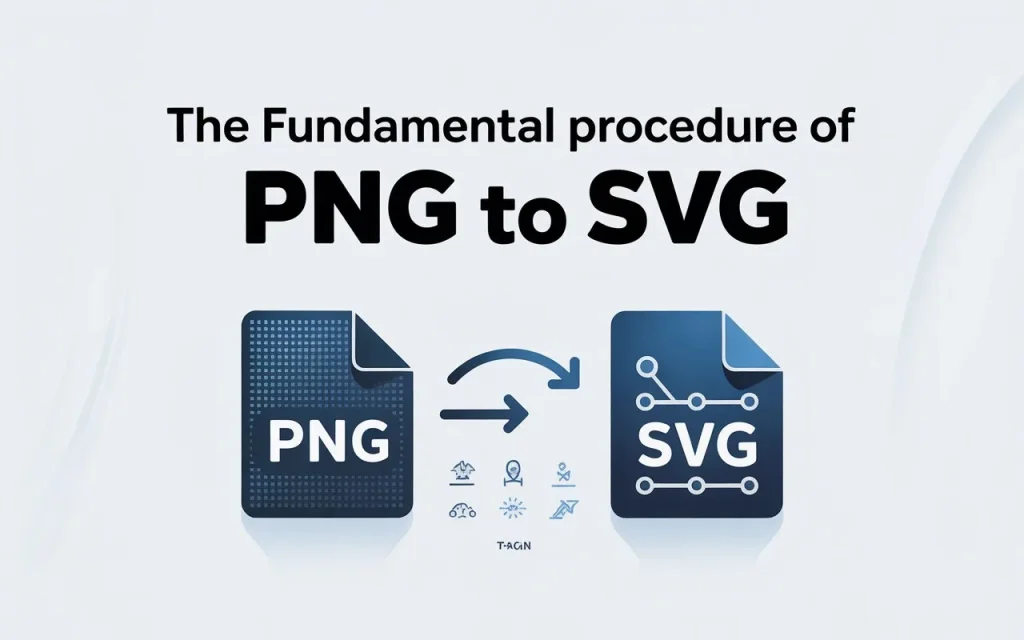
The Fundamental Procedure of PNG to SVG
To learn the Tips for Using PNG to SVG Converter Online, you must first understand the fundamental process for converting the files.
- Select the particular image you want to convert.
- Go to Pngtosvgpro.com – one of the Best Free PNG to SVG File Converters.
- Upload the selected image.
- Adjust color and background settings.
- Select the tracing level.
The tool will convert a pixel-based image into mathematical vector lines in just a couple of seconds, so that you get an SVG file that is editable and scalable as well.
This free process needs no installation or signup. The fast method saves time for designers who can download the converted file and open it in any editor of their choice.
Expert tip:
Select an image with fewer colors. It should also have clean edges. Also, ensure that the background is transparent. It adds to the versatility.
Tips for Selecting Images
- Select logos, icons, and simple graphics are best suited for conversion.
- Always choose high-quality PNG images, as blurry images look bad after conversion.
- If the background is complex, remove it first to create a clear vector.
- Edit the image to a limited number of colors before converting. This makes the file appear light and clean.
- Images like line art, icons, and logos are best suited for conversion.
- Use the Smooth Edges setting if the edges are rough or broken after conversion.
- When choosing the tracing mode, consider “Single Color” or “Multicolor.”
Expert Tips for PNG to SVG Converter: Always save your experiments and re-edit them. This allows for continued design improvement. Most importantly, be patient when converting PNG to SVG because perfect output comes with practice.
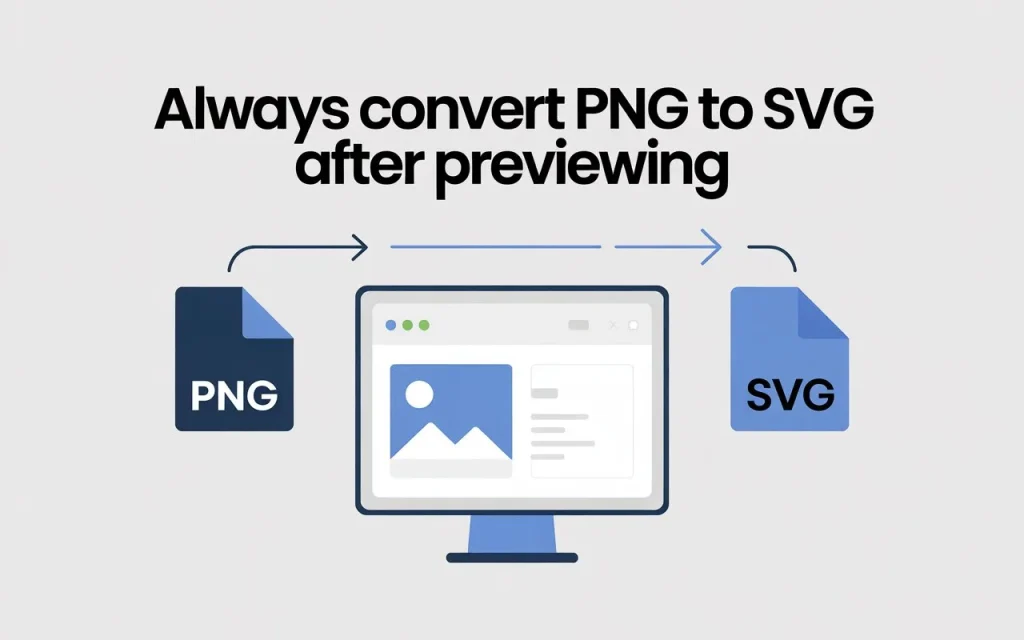
Always Convert PNG to SVG After Previewing
One of the most important Free PNG to SVG Converter Tips and Tricks is to make your final decision by viewing the preview. To improve the quality of your conversion, make sure that:
- You choose the right settings always for a smoother output.
- Keep transparency on so the background is clean.
- If the line thickness appears excessive, reduce the scale.
- Increase the contrast to make the vector lines of an image clearer.
- Understand the limitations of tools.
- After downloading the SVG, open the file in an editor and make subtle changes.
Expert tip: Remember, choosing complex photographs may not always yield perfect results.
Know the Best Practices
Follow these Best Practices For PNG to SVG Conversion and get the best results, and create professional designs:
- Crop the image and remove unnecessary areas.
- Keep the color balance correct.
- Transparent PNG produces better results.
- Create different versions and test them.
- Check the final SVG on the website to see if the rendering is accurate.
- Name the file SEO-friendly, such as “logo.svg.”
- Also consider using offline tools (Inkscape).
- Zoom the SVG to 200% and check the edges.
- Consistent practice leads to higher quality every time.
Tips for Best Usage of The Online Tool
While using this tool, ensure the following:
- Use a fast and stable internet.
- The tool should be HTTPS-secured.
- Choose a trusted website, like Pngtosvgpro.com.
- Do not upload images containing sensitive data.
- Check the results immediately after downloading.
- Compress large files first.
- Check the results in different browsers.
- Embed the output SVG directly into your project.
- Compare the quality before and after conversion.
- Learn to experiment with online tools and keep experimenting.
Conclusion
By following this PNG to SVG Online Conversion Step by Step guide, you can create lightweight, editable, and scalable SVG files. Understanding the Difference Between PNG and SVG empowers you to make smarter design choices, while using the Best Free PNG to SVG File Converters like Pngtosvgpro.com ensures professional-quality vector graphics every time.
FAQs
Q1. Is data saved during conversion?
Ideally, the uploaded file is deleted within a few minutes. The data is not stored on any server.
Q2. How large can a file be uploaded?
File sizes up to 5MB are typically supported. It is best to compress larger files first.
Q3. Can photos be converted?
Yes, but better results are achieved with icons, logos, and simple images.
Q4. Is color accuracy maintained?
Yes, in most cases, but very dark images may experience slight differences.
Q5. Do I need to download any software?
No, this is a completely online tool. Simply use it from your browser.
Q6. Is this a professional-grade tool for graphic projects?
Yes, its output quality is comparable to professional design software.
Q7. Is this tool free?
Yes, Pngtosvgpro.com is completely free. You can upload and download instantly with no registration or fees.
Q8. Are the file and site secure?
Yes, they are. Your personal information or data is not stored anywhere, ensuring complete privacy and anonymity.
Q9. Will the background remain transparent?
Yes, if there’s transparency in PNG, it remains so in SVG.
Q10. Is it safe to share SVG?
Yes, downloading SVG is clean and safe.
Q11. Does the tool work well on slow internet?
Yes, it may take a little longer, but the conversion is complete.
Q12. Can multiple files be converted simultaneously?
Currently, one file is converted at a time. This keeps server load low and ensures high quality. It is also better for security.
Q13. Is SVG resolution affected?
No, SVG is vector-based. Quality remains high on any screen or print.
Q14. Could it become paid in the future?
Right now, it is completely free. A premium version may be released as new features become available, but the current free version is still sufficient.

Hi, I am Shyam Patel, a digital graphics and file-conversion specialist with hands-on experience in PNG to SVG conversion, vector graphics, and online image optimization tools. I create practical, experience-based guides that help users convert PNG to SVG with accuracy, speed, and professional-quality results.